# \[HOWTO\] Begin your Open Voice OS journey with the ovos-installer 💖 😍
**URL:** https://community.openconversational.ai/t/howto-begin-your-open-voice-os-journey-with-the-ovos-installer/14900
**Category:** OpenVoiceOS's Voice AI Platform
**Tags:** ovos, ovos-installer, howto, raspberrypi, quickstart
**Created:** [May 10, 2024, 1:31am UTC](https://community.openconversational.ai/t/howto-begin-your-open-voice-os-journey-with-the-ovos-installer/14900 "2024-05-10T01:31:53Z")
**Posts on this page:** 20
**Page:** 1
### Author:  [@goldyfruit](https://community.openconversational.ai/u/goldyfruit)
#### Post date: [May 10, 2024, 1:31am UTC](https://community.openconversational.ai/t/howto-begin-your-open-voice-os-journey-with-the-ovos-installer/14900/1 "2024-05-10T01:31:53Z")
# Introduction
Back to the old Mycroft A.I days, the users were able to run a [script](https://github.com/MycroftAI/mycroft-core/blob/dev/dev_setup.sh) to install `mycroft-core` on different CPU architectures such as `x86_64` or `arm64` and on few different Linux distributions as well in a very short amount of time which helped to the software adoption.
The goal of the `ovos-installer` is to provide the **same habit** as with `mycroft-core` but with _(we think)_ an enhanced experience 🙃. _Mycroft AI led the way, we followed and took a different path…_ 🛤
## What is `ovos-installer`?
The Open Voice OS Installer is designed to help the users _(developer, hobbyist, etc…)_ to **easily** install the [Open Voice OS](https://openvoiceos.org/) _and/or_ the [HiveMind](https://github.com/JarbasHiveMind/HiveMind-core) stacks.
Through a **multilingual** and simple **T** ext-based **U** ser **I** nterface _(TUI)_, the `ovos-installer` asks basic questions to define what would be the best setup based on the answers provided by the user. Once ready, the `ovos-installer` triggers an [Ansible](https://en.wikipedia.org/wiki/Ansible_(software)) playbook which provides **consistency** and **idempotency** 😍.
## What’s in the truck? 🚛
Here is a quick overview of what the `ovos-installer` could provide.
| `OS` | `x86_64` | `arm64` | `arm32` | `OCI` | `venv` | `RPi* ` | `GUI` | `Skills` |
| --- | --- | --- | --- | --- | --- | --- | --- | --- |
| _Linux_ | ✅ | ✅ | ❗ | ✅ | ✅ | ✅ | ✅ | ✅ |
| _[MacOS](https://github.com/OpenVoiceOS/ovos-installer/issues/4)_ | ✅ | ✅ | ❗ | ❗ | ✅ | ❗ | ❗ | ✅ |
| _Windows WSL2_ | ✅ | ✅ | ❗ | ✅ | ✅ | ❗ | ❗ | ✅ |
\*_Raspberry Pi 3B+, 4B, 5B_. Raspberry Pi **below** version 3B **are not supported** by the `ovos-installer`.
### Mark 1 & Mark II & DevKit support 🎉
Both of the Mycroft A.I legacy hardwares; _Mark 1_, _Mark II_\* and **DevKit** are supported by the `ovos-installer`. There is nothing to do on the user side as everything is **auto-detected** and configured during runtime.
\*_95% working as the [SJ201](https://github.com/MycroftAI/hardware-mycroft-mark-II/blob/master/mark-II-Rpi-devkit/KiCAD/SJ201-Raspberry%20Pi%204%20Daughterboard/README.md) dual channel still not optimal and LED ring is not working yet._
### Burn the Raspberry Pi OS image 🔥
> _This step is only requires if you plan to run Open Voice OS on a **Raspberry Pi, Mark 1 or Mark II**._
_When running on a Raspberry Pi 3B+, the installer will not setup the GUI as the board doesn’t have enough resources to handle it 😅._
Follow the screenshots in order to burn the **Raspberry Pi OS Trixie Lite 64-bit**. The **“Lite”** is important as it reduces the amount of packages installed and the resources consumed on the Raspberry Pi. It allows as well the `ovos-gui` service to leverage [EGLFS](https://doc.qt.io/qt-6/embedded-linux.html#eglfs) which is the recommended way to run the GUI.
Install and run the [Raspberry Pi Imager](https://www.raspberrypi.com/news/raspberry-pi-imager-imaging-utility/) as it makes things simpler _(but this just a recommendation not an obligation)_. 💖
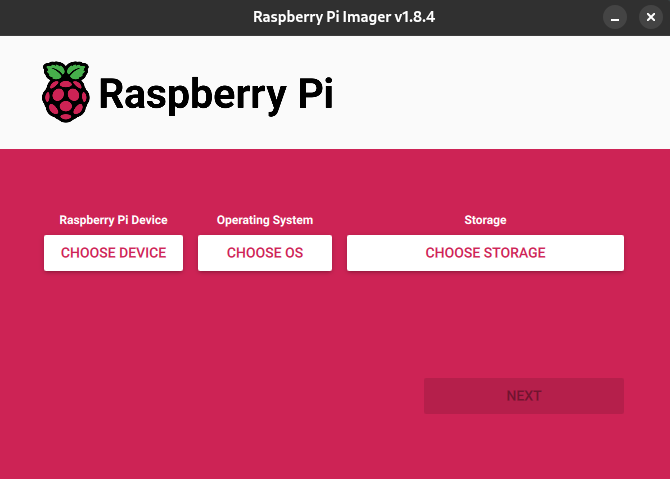
Choose **“No filtering”** as we want to list all the available versions of Raspberry Pi OS.
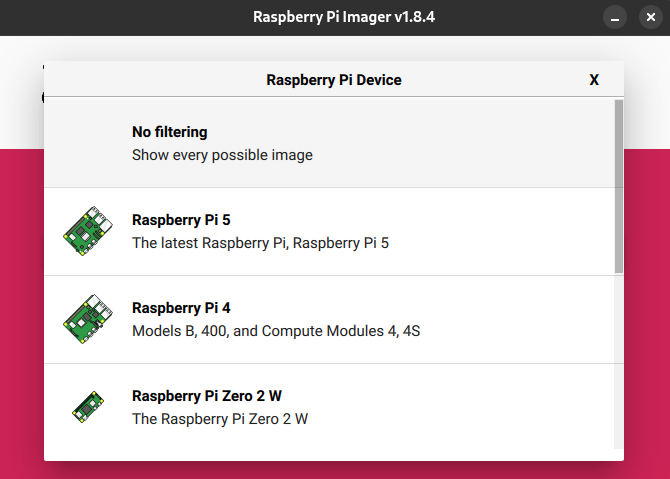
Select “Raspberry Pi OS Lite 64-bit\*” _(Trixie Feb 2026)_ as previously mentioned.
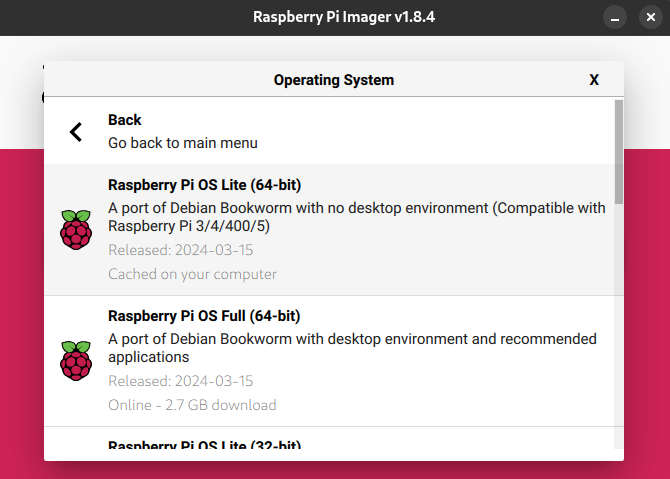
Select the storage where to burn the image, a fast device is always recommended for a better experience.
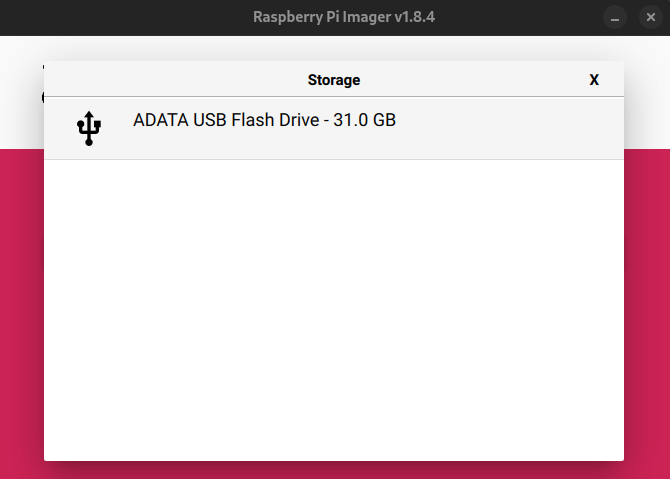
This step is important as this is where the WiFi configuration and the user credential are defined. If this is not configured properly then the Raspberry Pi will not be reachable.
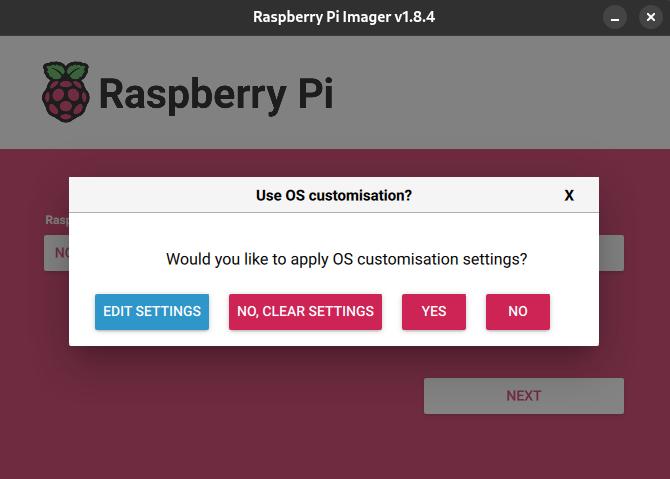
Set the required settings to match your environment/requirements.

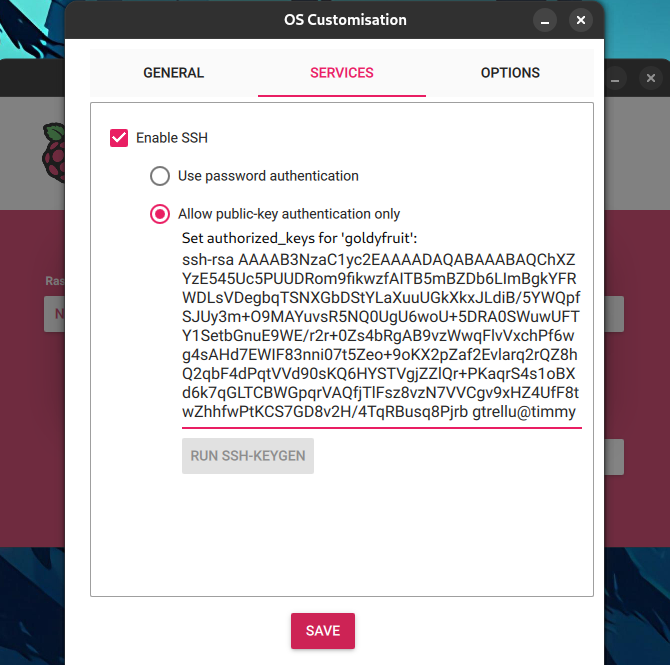
Make sure to check **“Enable SSH”** , here there is a SSH public key configured but you could stick with password authentication _(based on the password set in the previous screenshot)_.
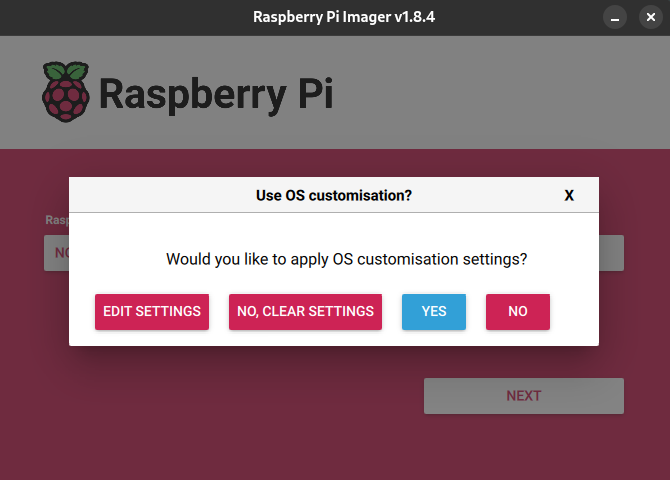
Make sure to select **“Yes”** to apply the customization.
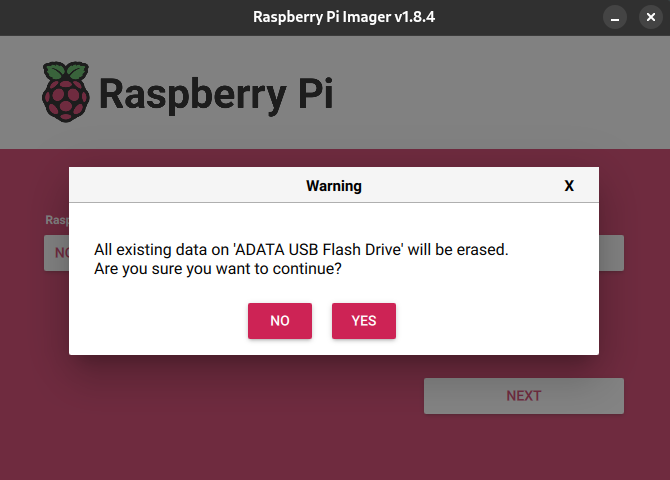
Select **“Yes”** to burn the image.
Wait for few minutes, maybe its time for a coffee/tea brake? ☕ 🍵
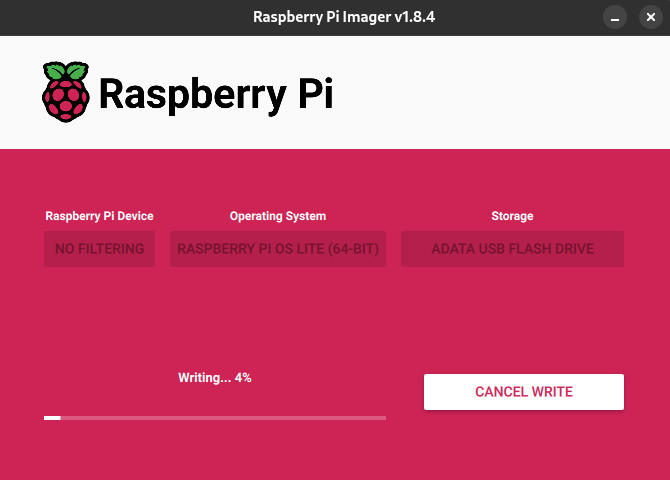
Done! 🥳 🎉
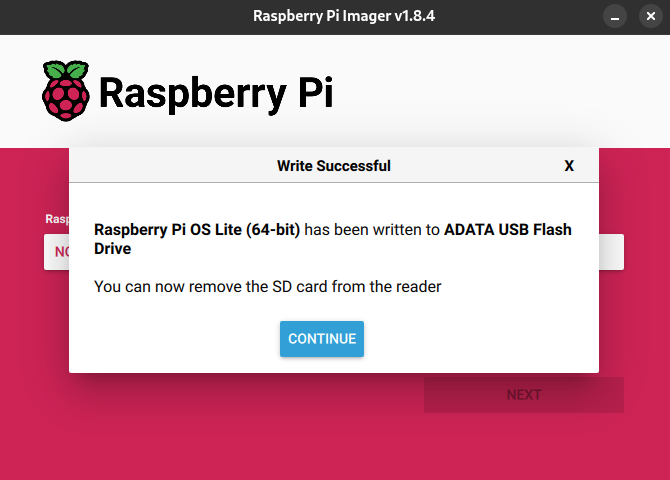
Once burned on the SD card or the USB drive, the Raspberry Pi is ready to boot on Raspberry Pi OS. 🥳
## Run the `ovos-installer` and get OVOS installed
> _The installer will work on most of the hardware but in some cases such as when multiple microphones and/or speakers are present, the audio input/output could not be working as expected. “Exotic” [HATs](https://www.raspberrypi.com/news/introducing-raspberry-pi-hats/) such as ReSpeaker microphones, etc… might requires some extra configuration which is not handle by the `ovos-installer` (yet? 🙏)._
This is the “generic” part of this howto as the next steps will be applied for Raspberry Pi users as well as for “regular” users. Only the `ssh` command will be different as this will be required to reach a headless device such as Raspberry Pi as well as the `apt` command based on the Linux distribution the installer is running.
**Depending the hardware where the `ovos-installer` runs, the runtime could be from 5 minutes to 20 minutes _(WiFi & Internet connectivity and storage might impact the timing as well)_.**
```auto
# Only for headless/remote device
$ ssh -l goldyfruit 10.17.2.114
# Update package manager metadata
$ sudo apt update
# Update all packages first (kernel, eeprom, etc...)
$ sudo apt dist-upgrade -y
# Install required packages to run the installer
$ sudo apt install -y git curl
# Reboot (boot on new kernel, etc...)
$ sudo reboot
# Wait for the Raspberry Pi to reboot
$ ssh -l goldyfruit 10.17.2.114
# Run the installer
$ sudo sh -c "$(curl -fsSL https://raw.githubusercontent.com/OpenVoiceOS/ovos-installer/main/installer.sh)"
```
Once triggered, the `ovos-installer` will run some pre-flight checks and install the requirements such as Python, Ansible, etc… _This step might take about 5 minutes depending the hardware._
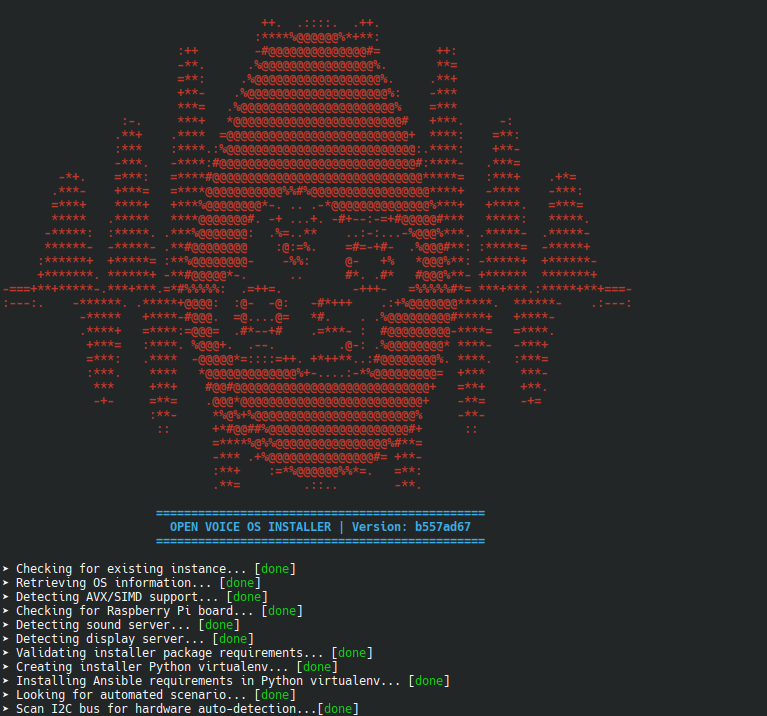
When all the requirements are settled, the **T** ext-based **U** ser **I** nterface _(TUI)_ is displayed and asks to select a language, follow the wizard carefully. 🧙 🪄

Summary of auto-detected information about the environment where the installer is running, no special action here just some valuable information. 🥸

Choose a method to install Open Voice OS, **“containers”** _(Docker/Podman)_ or **“virtualenv”** _(Python Virtual Environment)_. If you don’t know anything about containers then we **strongly** recommend to use the **“virtualenv”** method which will be easier to start with.

Select **“development”** as channel, once Open Voice OS will reach the production version, a “stable” option will be available.
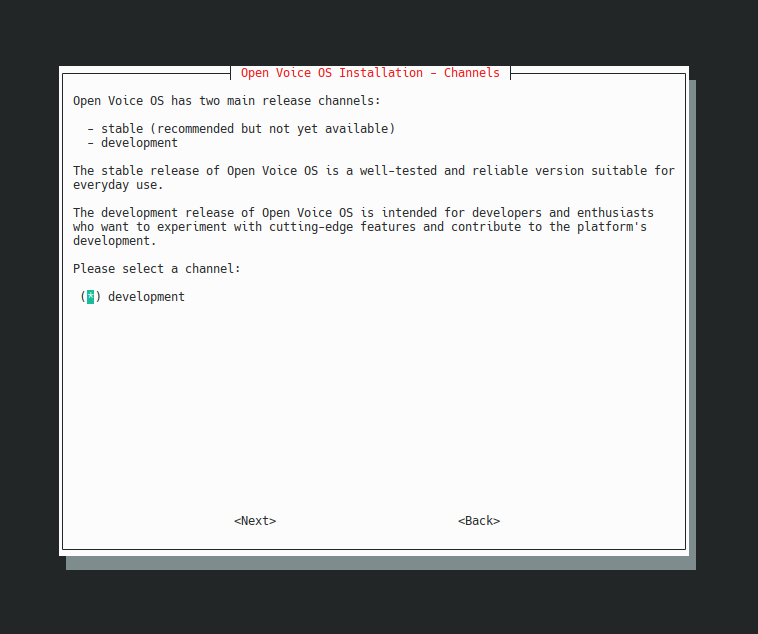
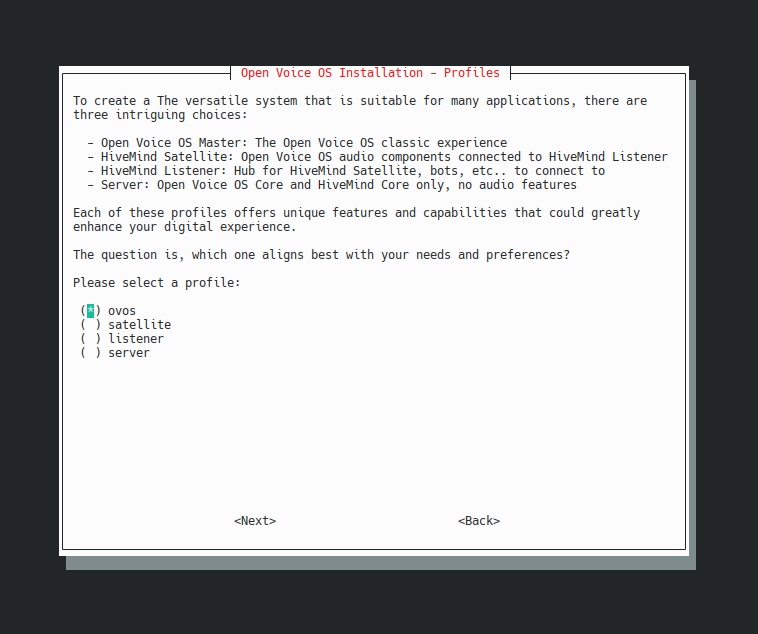
Choose the **“ovos”** profile. This profile provides the classic but exquisite 💁 Open Voice OS experience which consist to have all the required components on the same device.
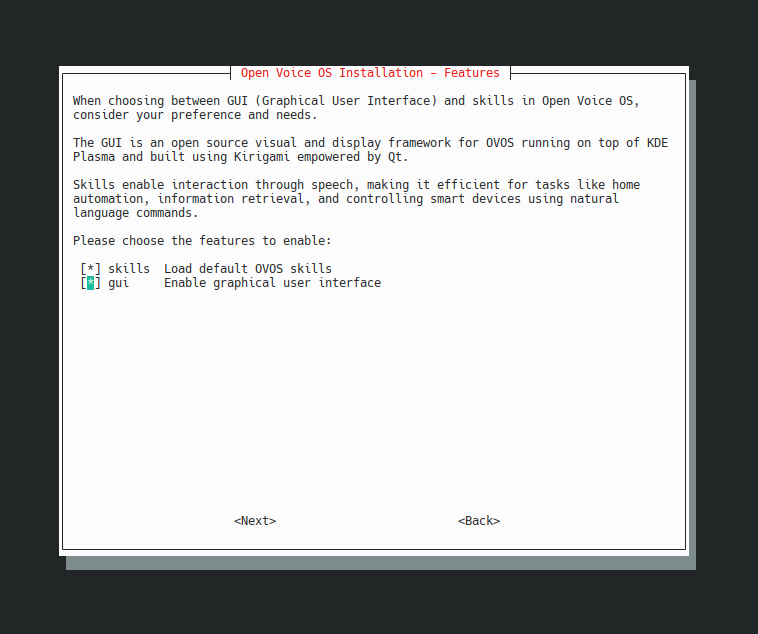
Select the features to install _(by default on Raspberry Pi 3B+ the **“gui”** feature will not be available)_. The choice is yours, choose wisely!
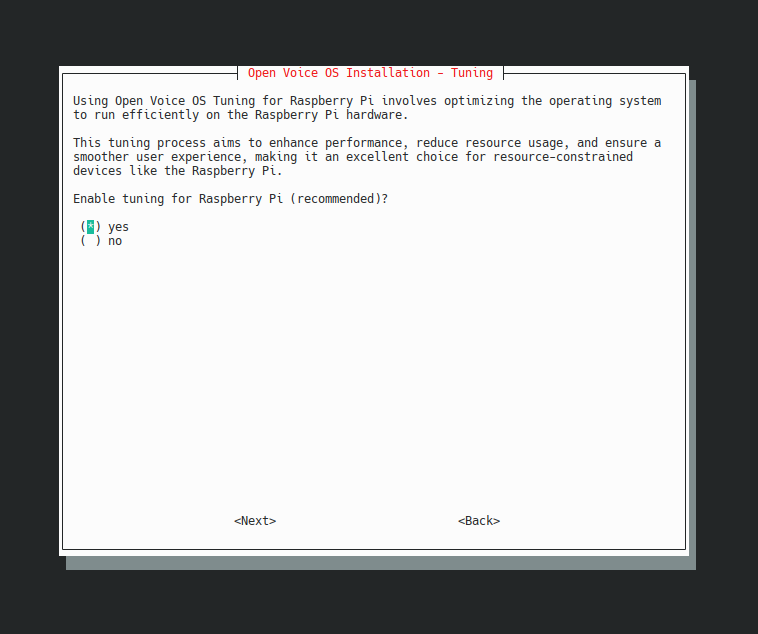
The tuning option is recommended on any Raspberry Pi boards as the installer will tweak the operating system to ensure a better user experience. _This screen will only be displayed if a Raspberry Pi board is detected._
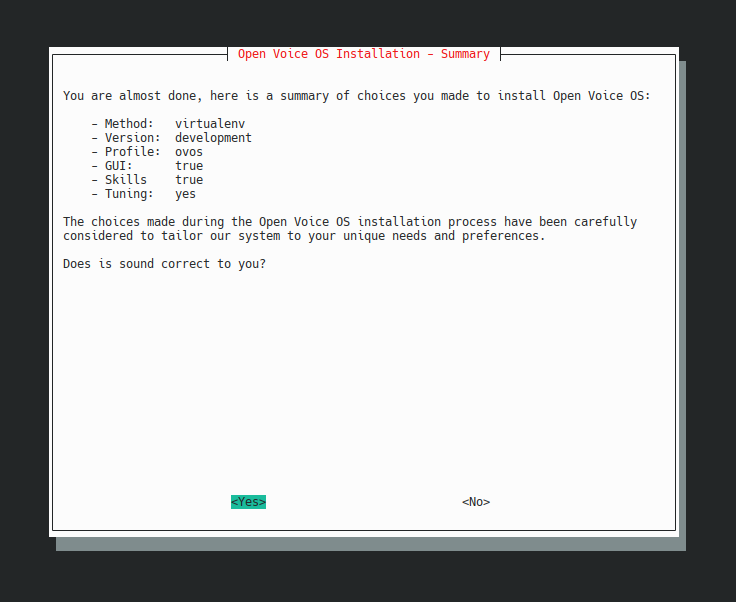
Just a quick and simple summary about what’s gonna be done. **This is the only place where you can exit the installer wizard.** 🛑
Please help us to improve Open Voice OS by sharing some anonymous information. [Please read this for information about what is shared with us.](https://github.com/OpenVoiceOS/ovos-installer/blob/main/docs/telemetry.md)
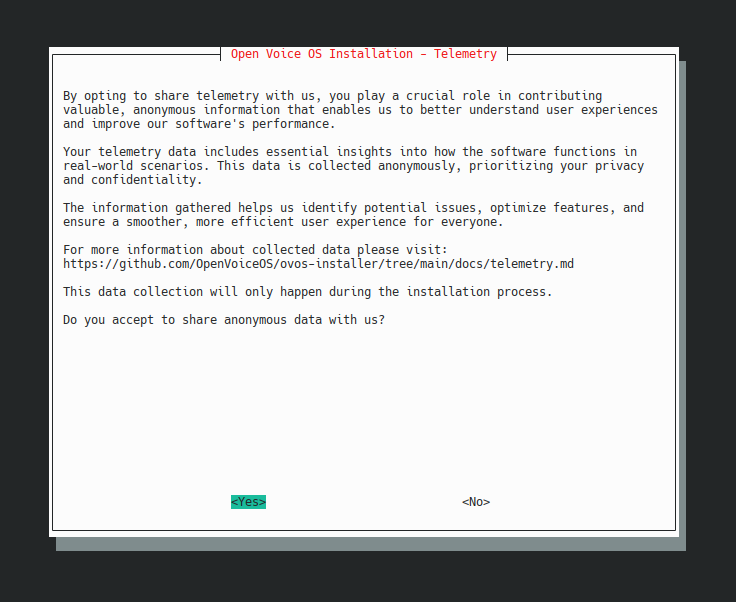
Here we go, the installation process starts, Open Voice OS gonna be installed! The process could take up to **20 minutes** depending the hardware as previously mentioned, **patience** …
_Maybe this time you could grab a piece of cake to join your coffee/tea?_ 🧁 🍰

Congratulations, Open Voice OS is now installed and ready to interact with **YOU**! Here you got some examples of what to ask to your new friendly open source assistant. 🎉 🎙
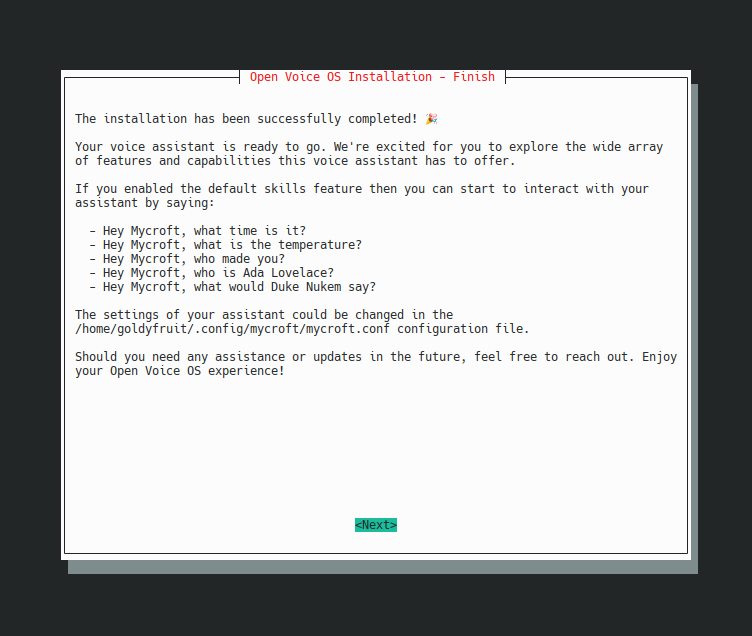
## Oh no, something went wrong! 😱 😨 😭
Sadly, the `ovos-installer` **is not perfect** , so don’t be mad at us if something goes wrong, its a community project backed by community members on their spare time. 💙 💜 🧡 💚 ❤
Any issue happening during the installation process will generate a [https://dpaste.com](https://dpaste.com) link with the installer’s logs.
Please share this link with us as it will be very helpful to understand the issue and help the community to find a solution to **your momentary drama**!
## Conclusion
We hope this helped out and made your life easier and gave you a needed jump-start to enter into your Open Voice OS journey!
_If not please share some constructive feedback about how this howto could be improved._
_Enjoy, be kind and be happy!_ 💏
---
### Author:  [@JarbasAl](https://community.openconversational.ai/u/JarbasAl)
#### Post date: [May 10, 2024, 1:51am UTC](https://community.openconversational.ai/t/howto-begin-your-open-voice-os-journey-with-the-ovos-installer/14900/2 "2024-05-10T01:51:26Z")
thanks for the awesome tutorial!
will be very helpful for new users
---
### Author:  [@JarbasAl](https://community.openconversational.ai/u/JarbasAl)
#### Post date: [May 10, 2024, 2:07am UTC](https://community.openconversational.ai/t/howto-begin-your-open-voice-os-journey-with-the-ovos-installer/14900/3 "2024-05-10T02:07:03Z")
---
### Author:  [@mike99mac](https://community.openconversational.ai/u/mike99mac)
#### Post date: [May 10, 2024, 1:39pm UTC](https://community.openconversational.ai/t/howto-begin-your-open-voice-os-journey-with-the-ovos-installer/14900/4 "2024-05-10T13:39:35Z")
Nice writeup @goldyfruit 🕶
Could you add a section at the end “Installing ovos-tools”?
```auto
cd
git clone https://github.com/mike99mac/ovos-tools
cd ovos-tools/
sudo ./setup.sh
lsenv
```
You were the one who suggested me porting `mycroft-tools` to `ovos-tools`. The `lsenv` command is most helpful, plus there’s a bunch of other tools. Thanks.
---
### Author:  [@goldyfruit](https://community.openconversational.ai/u/goldyfruit)
#### Post date: [May 10, 2024, 1:48pm UTC](https://community.openconversational.ai/t/howto-begin-your-open-voice-os-journey-with-the-ovos-installer/14900/5 "2024-05-10T13:48:36Z")
> [@mike99mac](#):
>
> Nice writeup @goldyfruit 🕶
Thanks @mike99mac 🙃
> [@mike99mac](#):
>
> Could you add a section at the end “Installing ovos-tools”?
This would be more valuable in a debug howto as this one is only related to the installation of Open Voice OS using the `ovos-installer`. 👍
---
### Author:  [@j1nx](https://community.openconversational.ai/u/j1nx)
#### Post date: [May 20, 2024, 11:15am UTC](https://community.openconversational.ai/t/howto-begin-your-open-voice-os-journey-with-the-ovos-installer/14900/6 "2024-05-20T11:15:32Z")
Going to test this out on a x86 machine for the ovos server install configuration.
Started by installing minimal Ubuntu 24.04 As that version does not have Python 3.11 installed or available on the default repo’s I had to;
```auto
sudo add-apt-repository ppa:deadsnakes/ppa
sudo apt update
sudo apt install python3.11
```
For the installer to start.
---
### Author:  [@mike99mac](https://community.openconversational.ai/u/mike99mac)
#### Post date: [May 20, 2024, 11:56am UTC](https://community.openconversational.ai/t/howto-begin-your-open-voice-os-journey-with-the-ovos-installer/14900/7 "2024-05-20T11:56:38Z")
I tried Ubuntu Desktop 24.04 on a RasPi 5, but it failed. I thought it was because the 5 is new hardware, but then it also failed on a RasPi 4. ☹
It seems you are on Intel architecture. Has anyone gotten Ubuntu 24.04 to install on ARM?
---
### Author:  [@goldyfruit](https://community.openconversational.ai/u/goldyfruit)
#### Post date: [May 20, 2024, 9:04pm UTC](https://community.openconversational.ai/t/howto-begin-your-open-voice-os-journey-with-the-ovos-installer/14900/8 "2024-05-20T21:04:53Z")
> [@j1nx](#):
>
> Going to test this out on a x86 machine for the ovos server install configuration.
>
> Started by installing minimal Ubuntu 24.04 As that version does not have Python 3.11 installed or available on the default repo’s I had to;
>
> ```auto
> sudo add-apt-repository ppa:deadsnakes/ppa
> sudo apt update
> sudo apt install python3.11
>
> ```
>
> For the installer to start.
Yep, @joergz got this issue on Matrix, I share the exact same workaround, I will add that to the `common.sh`.
Thanks for testing. 👍
_EDIT_
@mike99mac @j1nx feel free to test the PR bellow.
>
>
> Add \`ppa:deadsnakes/ppa\` repository when Ubuntu 24.04 or higher is detected.
---
### Author:  [@mike99mac](https://community.openconversational.ai/u/mike99mac)
#### Post date: [May 21, 2024, 11:11am UTC](https://community.openconversational.ai/t/howto-begin-your-open-voice-os-journey-with-the-ovos-installer/14900/9 "2024-05-21T11:11:34Z")
> [@goldyfruit](#):
>
> @mike99mac @j1nx feel free to test the PR bellow.
I have not been able to install Ubuntu 24.04 on any Raspberry Pi, so that makes it difficult to test ☹
I’m switching to Raspberry Pi OS 2024-03-15 as the base Linux.
---
### Author:  [@TPed](https://community.openconversational.ai/u/TPed)
#### Post date: [May 24, 2024, 11:03am UTC](https://community.openconversational.ai/t/howto-begin-your-open-voice-os-journey-with-the-ovos-installer/14900/10 "2024-05-24T11:03:20Z")
Nice tutorial, thanks!
---
### Author:  [@mocallins](https://community.openconversational.ai/u/mocallins)
#### Post date: [June 6, 2024, 11:12pm UTC](https://community.openconversational.ai/t/howto-begin-your-open-voice-os-journey-with-the-ovos-installer/14900/11 "2024-06-06T23:12:53Z")
Will it just be a flat no-go on a rPi Zero W ?
got the installer to run, but failed at nearly the last steps, I think, lol.
[https://dpaste.com/8PQPCYTJJ](https://dpaste.com/8PQPCYTJJ)
---
### Author:  [@goldyfruit](https://community.openconversational.ai/u/goldyfruit)
#### Post date: [June 6, 2024, 11:44pm UTC](https://community.openconversational.ai/t/howto-begin-your-open-voice-os-journey-with-the-ovos-installer/14900/12 "2024-06-06T23:44:44Z")
> [@mocallins](#):
>
> Will it just be a flat no-go on a rPi Zero W ?
RPi Zero W can only do 32-bit which will not work with the `ovos-installer`. RPi Zero 2 W will work though.
---
### Author:  [@mocallins](https://community.openconversational.ai/u/mocallins)
#### Post date: [June 7, 2024, 2:30am UTC](https://community.openconversational.ai/t/howto-begin-your-open-voice-os-journey-with-the-ovos-installer/14900/13 "2024-06-07T02:30:10Z")
Thank you, will look at getting a Zero W 2
---
### Author:  [@goldyfruit](https://community.openconversational.ai/u/goldyfruit)
#### Post date: [June 28, 2024, 10:08pm UTC](https://community.openconversational.ai/t/howto-begin-your-open-voice-os-journey-with-the-ovos-installer/14900/14 "2024-06-28T22:08:14Z")
The new `quake` release of `ovos-installer` is out 💏
> **[Release Quake · OpenVoiceOS/ovos-installer](https://github.com/OpenVoiceOS/ovos-installer/releases/tag/v3.0.0)**
>
> What's Changed
>
> added back button by @suvanbanerjee in #66
> \[server\] Implement server profile by @goldyfruit in #69
> Hindi language support added by @Vaibhav-Magadum in #71
> added uninstall in README ...
---
### Author:  [@dawid](https://community.openconversational.ai/u/dawid)
#### Post date: [June 30, 2024, 12:55pm UTC](https://community.openconversational.ai/t/howto-begin-your-open-voice-os-journey-with-the-ovos-installer/14900/15 "2024-06-30T12:55:08Z")
Thank you @goldyfruit for a good tutorial.
I followed it to the dot on my Mark II, unfortunately it didn’t work.
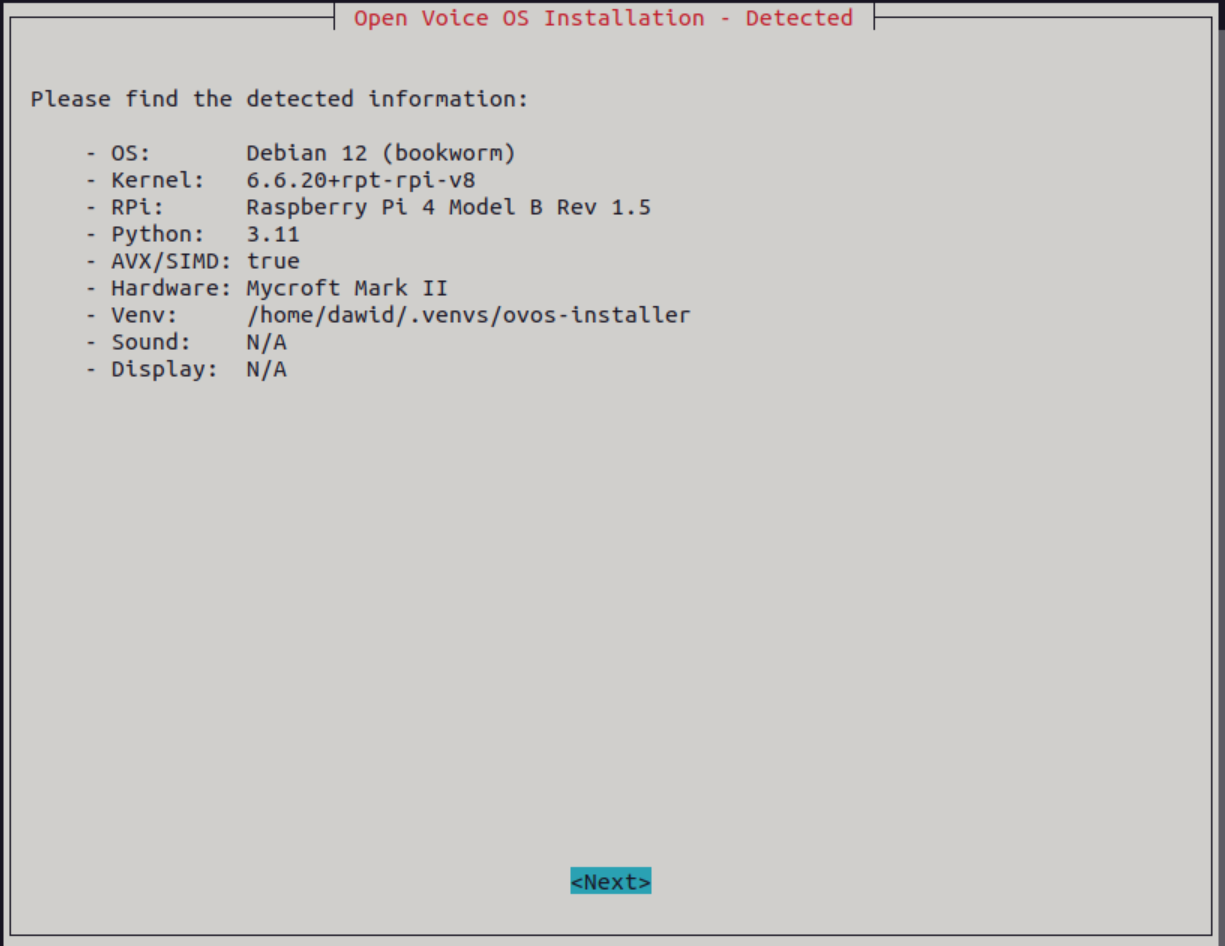
The installation didn’t seem to detect the Mycroft display (that was working fine for Mycroft few minutes prior to installation of Open Voice OS).
One error during installation was:
`fatal: [127.0.0.1]: FAILED! => {"attempts": 5, "changed": false, "elapsed": 30, "msg": "Status code was -1 and not [200]: Request failed: ", "redirected": false, "status": -1, "url": "https://telemetry.smartgic.io/ovos-installer/metrics/"}`
After installing the system showed the installation worked fine and I got presented with the final screen as in your tutorial with the list of questions I can ask.
After reboot, screen would not display anything, any question (from the list suggested) would end up with a double bip sound (after acknowledging that it started listening) 😕
I searched for any reference to sprunge in the outcome from the installation, unfortunately nothing showed.
Happy to provide more info
---
### Author:  [@dawid](https://community.openconversational.ai/u/dawid)
#### Post date: [June 30, 2024, 12:59pm UTC](https://community.openconversational.ai/t/howto-begin-your-open-voice-os-journey-with-the-ovos-installer/14900/16 "2024-06-30T12:59:55Z")
A little update, the screen does actually work (after another reboot I was able to see the Open Voice OS logo), unfortunately none of the questions get answered
---
### Author:  [@dawid](https://community.openconversational.ai/u/dawid)
#### Post date: [June 30, 2024, 1:01pm UTC](https://community.openconversational.ai/t/howto-begin-your-open-voice-os-journey-with-the-ovos-installer/14900/17 "2024-06-30T13:01:51Z")
One more piece of info that might help…
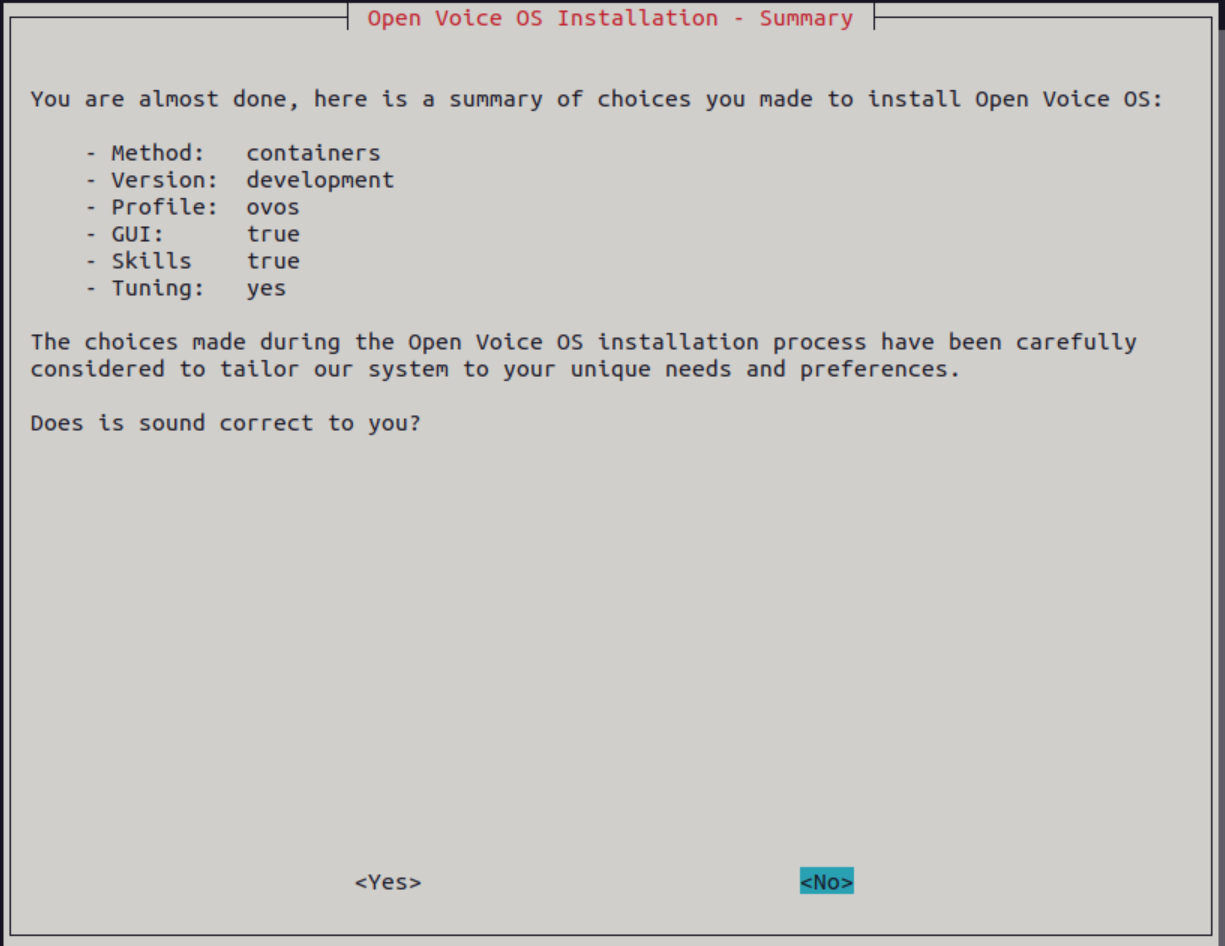
(I did select yes after the screenshot was done)
---
### Author:  [@goldyfruit](https://community.openconversational.ai/u/goldyfruit)
#### Post date: [June 30, 2024, 2:16pm UTC](https://community.openconversational.ai/t/howto-begin-your-open-voice-os-journey-with-the-ovos-installer/14900/18 "2024-06-30T14:16:27Z")
> [@dawid](#):
>
> The installation didn’t seem to detect the Mycroft display (that was working fine for Mycroft few minutes prior to installation of Open Voice OS).
This is not the display (hardware) but the server display (software), which is expected as nothing got installed yet.
> [@dawid](#):
>
> One error during installation was:
> `fatal: [127.0.0.1]: FAILED! => {"attempts": 5, "changed": false, "elapsed": 30, "msg": "Status code was -1 and not [200]: Request failed: ", "redirected": false, "status": -1, "url": "https://telemetry.smartgic.io/ovos-installer/metrics/"}`
This error is fine as if it fails 5 times trying to share the telemetry then the paybook will give up and go to the next task.
A double bip sound means that skills are not available.
About the GUI, an issue has been opened about the issue: [Stuck on OVOS logo · Issue #42 · OpenVoiceOS/ovos-gui · GitHub](https://github.com/OpenVoiceOS/ovos-gui/issues/42)
Now for the questions not answered, you will have to check the Docker logs as maybe
```auto
$ docker logs -f ovos_listerner
$ docker logs -f ovos_core
```
---
### Author:  [@dawid](https://community.openconversational.ai/u/dawid)
#### Post date: [June 30, 2024, 2:32pm UTC](https://community.openconversational.ai/t/howto-begin-your-open-voice-os-journey-with-the-ovos-installer/14900/19 "2024-06-30T14:32:57Z")
Thank you so much for the speedy reply @goldyfruit
I have now tried to re-install using virtual env rather than containers method.
This seems to have worked a lot better, the screen dipslayed the time and date after the reboot and it started answering questions too 🎉
For the completion, given you’ve provided a good info about where to search for logs with Dockerised version, it would be good to know where should we look for errors on the virtualised env.
---
### Author:  [@goldyfruit](https://community.openconversational.ai/u/goldyfruit)
#### Post date: [June 30, 2024, 2:36pm UTC](https://community.openconversational.ai/t/howto-begin-your-open-voice-os-journey-with-the-ovos-installer/14900/20 "2024-06-30T14:36:54Z")
> [@dawid](#):
>
> I have now tried to re-install using virtual env rather than containers method.
> This seems to have worked a lot better, the screen dipslayed the time and date after the reboot and it started answering questions too 🎉
Awesome!
> [@dawid](#):
>
> For the completion, given you’ve provided a good info about where to search for logs with Dockerised version, it would be good to know where should we look for errors on the virtualised env.
`ovos-installer` leverages `ovos-docker ` internally when `containers` method is selected. Have a look here [Debugging - Open Voice OS Container Documentation](https://ovos-docker-manual.openvoiceos.org/getting-started/docker/debug/)
For the `virtualenv` method, logs are accessible via `journalctl --user ovos-core` for example or log files as duplicated as well in `~/.local/state/mycroft/` directory.
Glad to see an other Mark II up and running! 🥳 :piñata: 🎉
[Next page](https://community.openconversational.ai/t/howto-begin-your-open-voice-os-journey-with-the-ovos-installer/14900.md?page=2)